
Setting up two-step verification on your main accounts
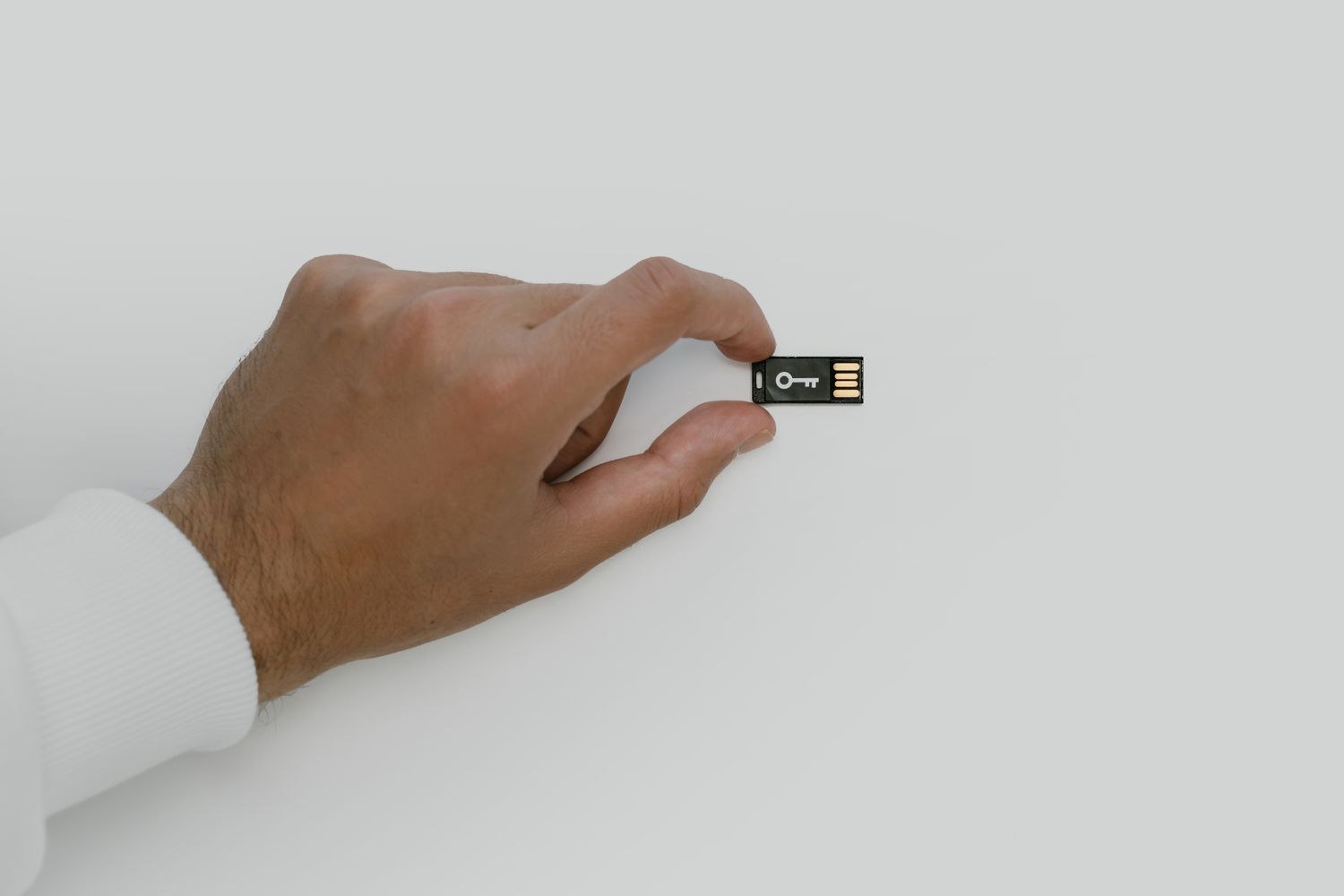
Two-step verification adds a second check when you sign in, which makes stolen passwords far less useful. Here is how it works and how to turn it on, following CISA guidance.
Passwords alone are no longer enough to keep an account safe. They can be guessed, reused or stolen in a data breach. Two-step verification adds a second check when you sign in, so a stolen password by itself is not enough to get into your account. Turning it on takes a few minutes per account, and it is one of the most effective steps you can take to protect yourself online.
What two-step verification is
The Cybersecurity and Infrastructure Security Agency (CISA) uses the term multifactor authentication, or MFA, and notes on its MFA page that the same idea goes by several names: two-factor authentication, 2FA, two-step verification and two-step authentication.
Whatever it is called, it works by asking for two or more kinds of proof that you are you. CISA describes three types:
- Something you know, such as a password or PIN.
- Something you have, such as a code sent to your phone or generated by an authenticator app.
- Something you are, such as a fingerprint or face scan.
CISA explains that even if someone steals your password, they still cannot meet the second requirement, which keeps them out of your account.
Where to turn it on first
CISA suggests starting with your most-used accounts and lists the kinds of services where MFA matters most: email, financial services, social media, online stores, and gaming and streaming services. Email deserves special attention because it is often used to reset passwords for everything else. Your bank, any health care portals and your main shopping accounts are good next steps.
How to set it up
CISA's step-by-step guide breaks the process into three parts that work for most accounts and apps:
- Go to settings. Look under your account profile for a section called Account Settings, Profile, Preferences or Privacy, then open the security settings.
- Find and turn on MFA. It may be labeled two-factor authentication, two-step authentication or something similar.
- Choose your method. Pick from the options the account offers, such as a code sent by text or email, an authenticator app, or a fingerprint or face scan.
CISA notes that authenticator apps generate a new code every 30 seconds, which you type in to finish signing in. Once MFA is on, you may be asked for that extra step when you log in, and CISA describes it as taking only a moment.
Choosing a method
CISA's list of common MFA options includes text or voice messages, app-based codes, phishing-resistant methods, and fingerprint or face scans. Any of these is better than a password alone. If an account offers more than one, it can be worth reading the account's help pages to see which option it recommends.
If an important account does not offer MFA at all, CISA encourages asking the company why not.
Pair it with strong passwords
Two-step verification works best alongside good passwords. CISA's password guidance recommends passwords that are long (at least 16 characters), random and unique to each account. It suggests a password manager to create and store them, so you only need to remember one strong passphrase.
Start with one account today
You do not have to secure everything at once. Turn on two-step verification for your main email account first, then work through your bank and other important accounts over the next few days. Each one you finish makes it much harder for someone else to get in.
Sources
Written with AI assistance and edited and published by Gerry Oliver Davidson on November 27, 2026. Check the linked sources for the latest official details.